
Club Flyers file setup templates
Start with the size shown on your order. Download a guide for your chosen shape and fold, then build the artwork at its original dimensions.
Choose a size
Dimensions below describe the template trim reference. For sizes labeled Folded, the download opens the sheet to show both panels. Pocket folders need a separate production layout. Print or place PDFs at 100%; turn off fit-to-page scaling.
2" x 5.5"
Trim reference: 2 × 5.5 inches
With bleed: 2.25 × 5.75 inches · Safe inset: 0.125 inches
2.125" x 5.5"
Trim reference: 2.125 × 5.5 inches
With bleed: 2.375 × 5.75 inches · Safe inset: 0.125 inches
2.75" x 4.25"
Trim reference: 2.75 × 4.25 inches
With bleed: 3 × 4.5 inches · Safe inset: 0.125 inches
3" x 9"
Trim reference: 3 × 9 inches
With bleed: 3.25 × 9.25 inches · Safe inset: 0.125 inches
3" x 10"
Trim reference: 3 × 10 inches
With bleed: 3.25 × 10.25 inches · Safe inset: 0.125 inches
3.5" x 8.5"
Trim reference: 3.5 × 8.5 inches
With bleed: 3.75 × 8.75 inches · Safe inset: 0.125 inches
3.66" x 8.5"
Trim reference: 3.66 × 8.5 inches
With bleed: 3.91 × 8.75 inches · Safe inset: 0.125 inches
4.75" x 4.75"
Trim reference: 4.75 × 4.75 inches
With bleed: 5 × 5 inches · Safe inset: 0.125 inches
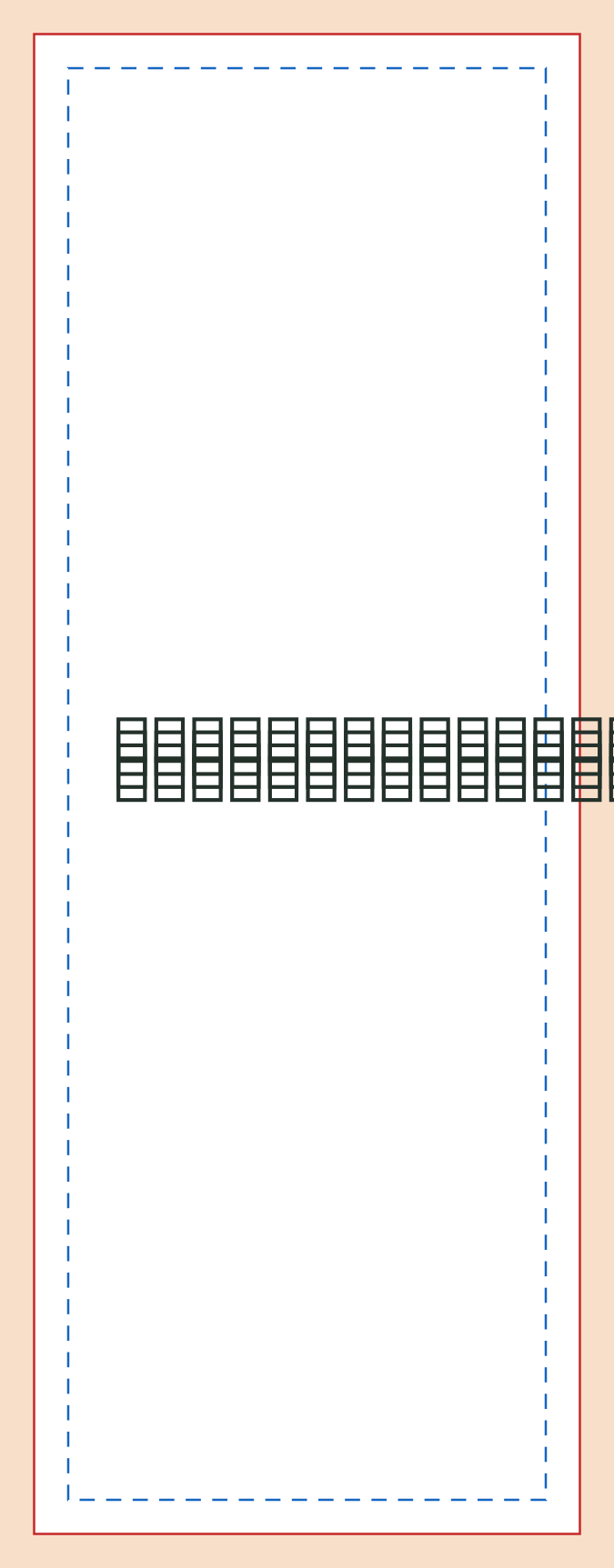
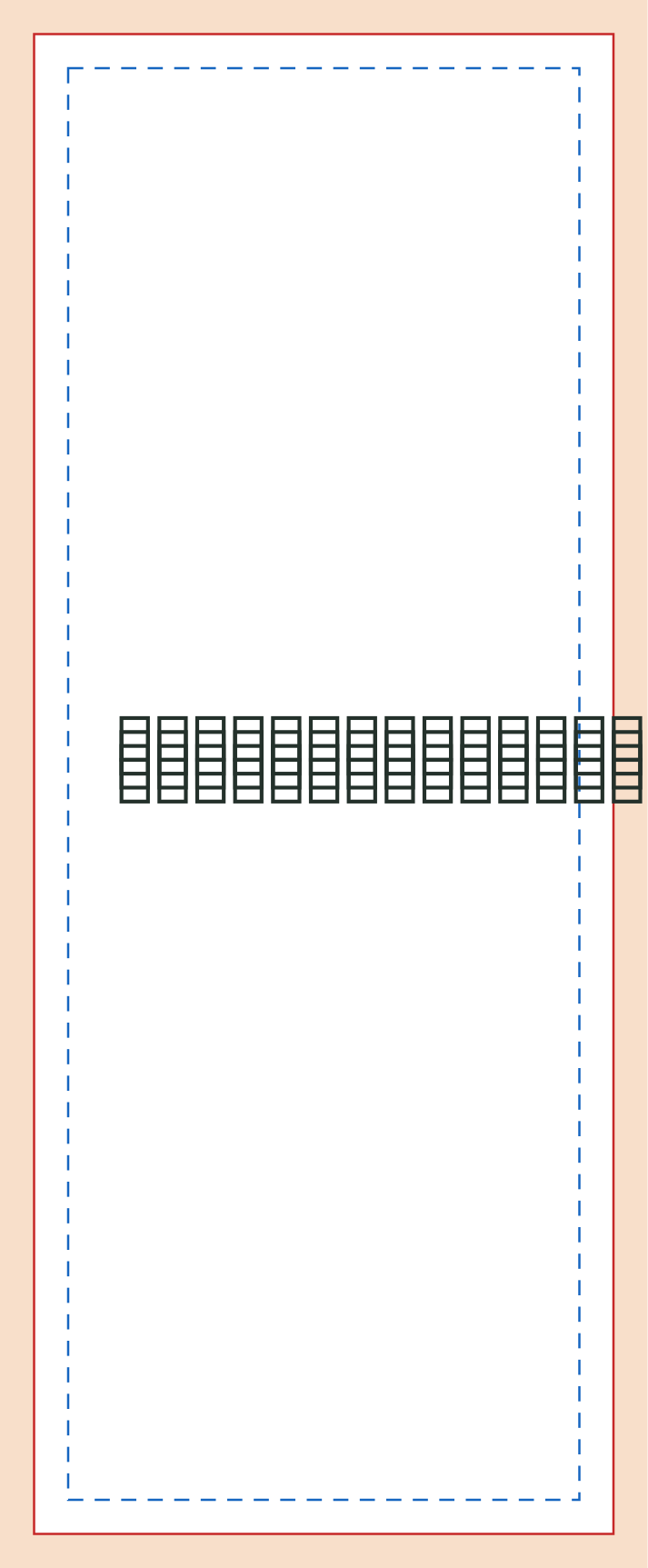
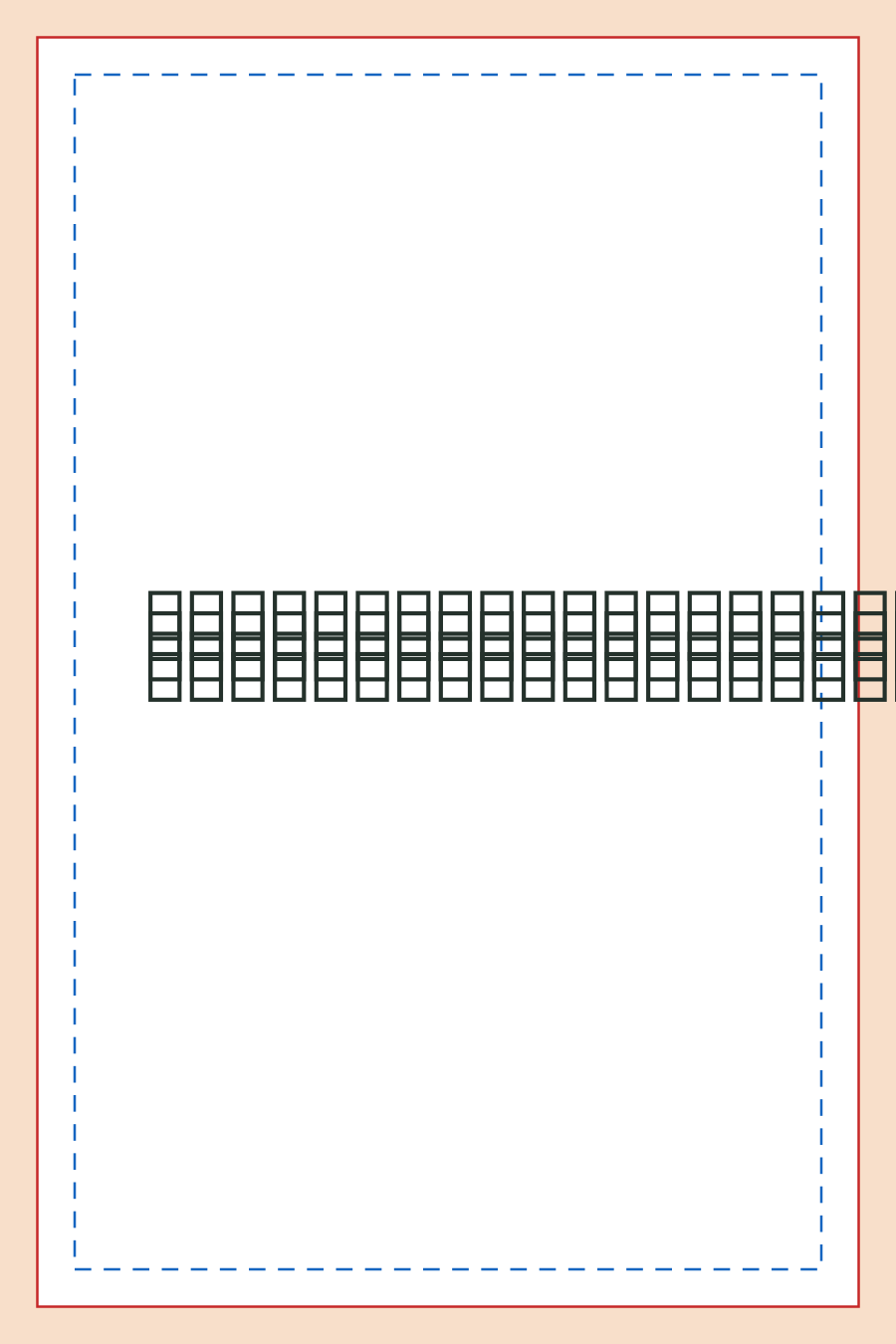
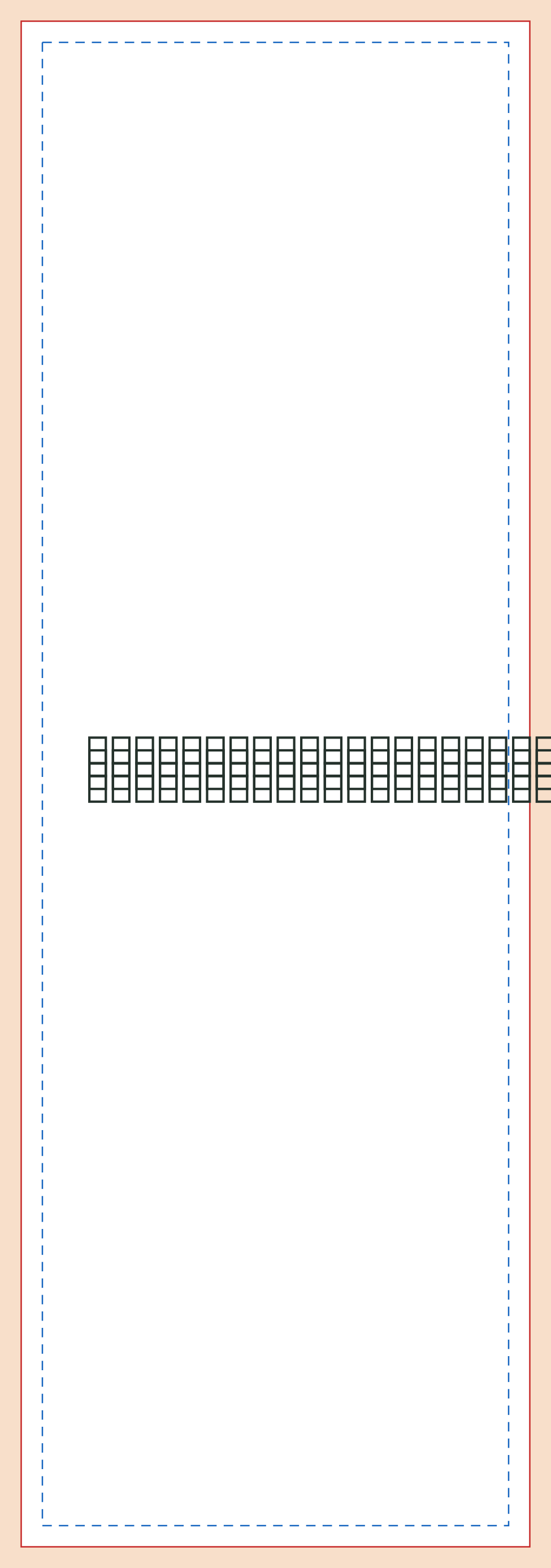
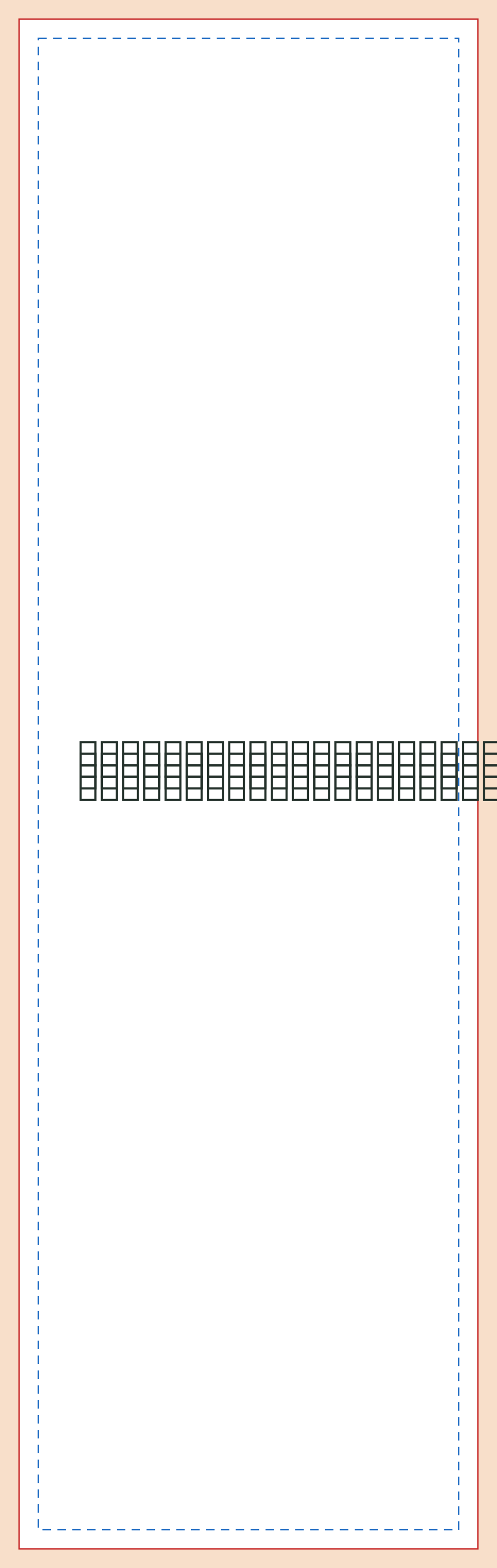
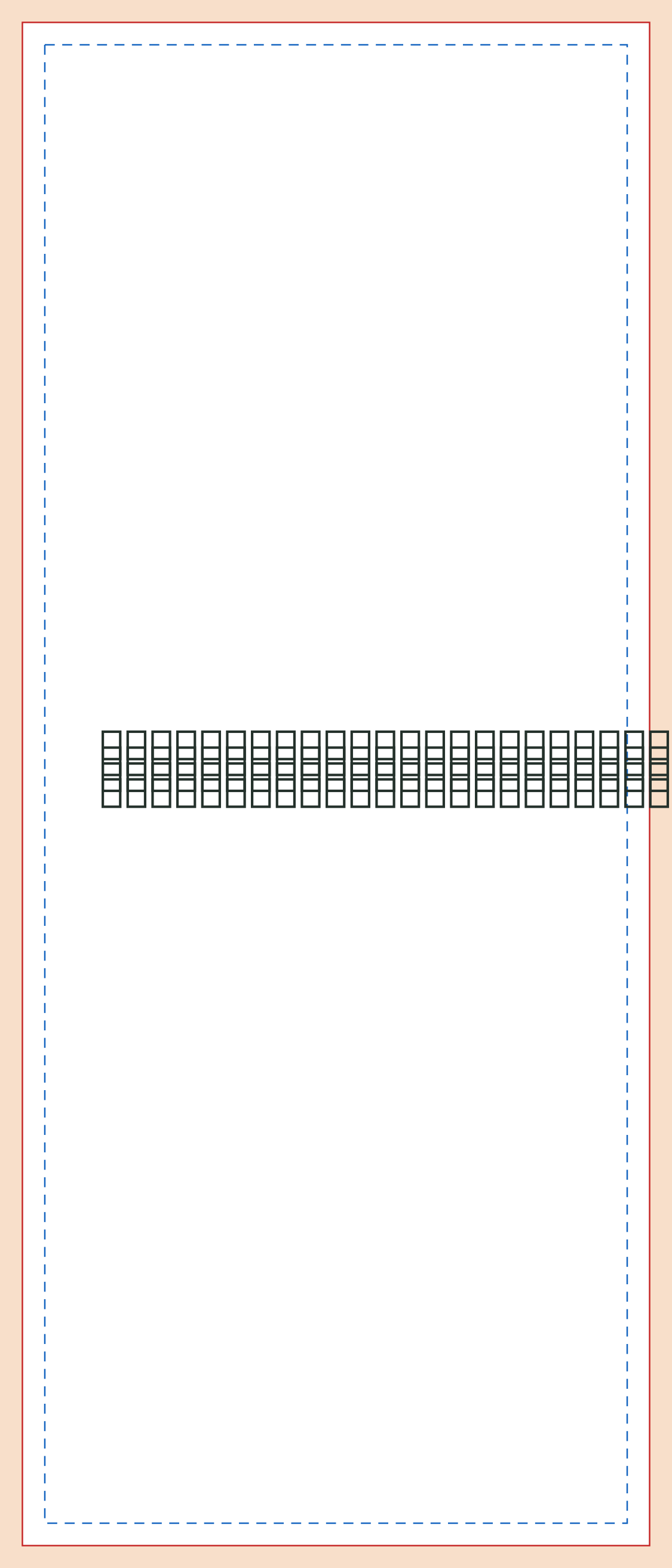
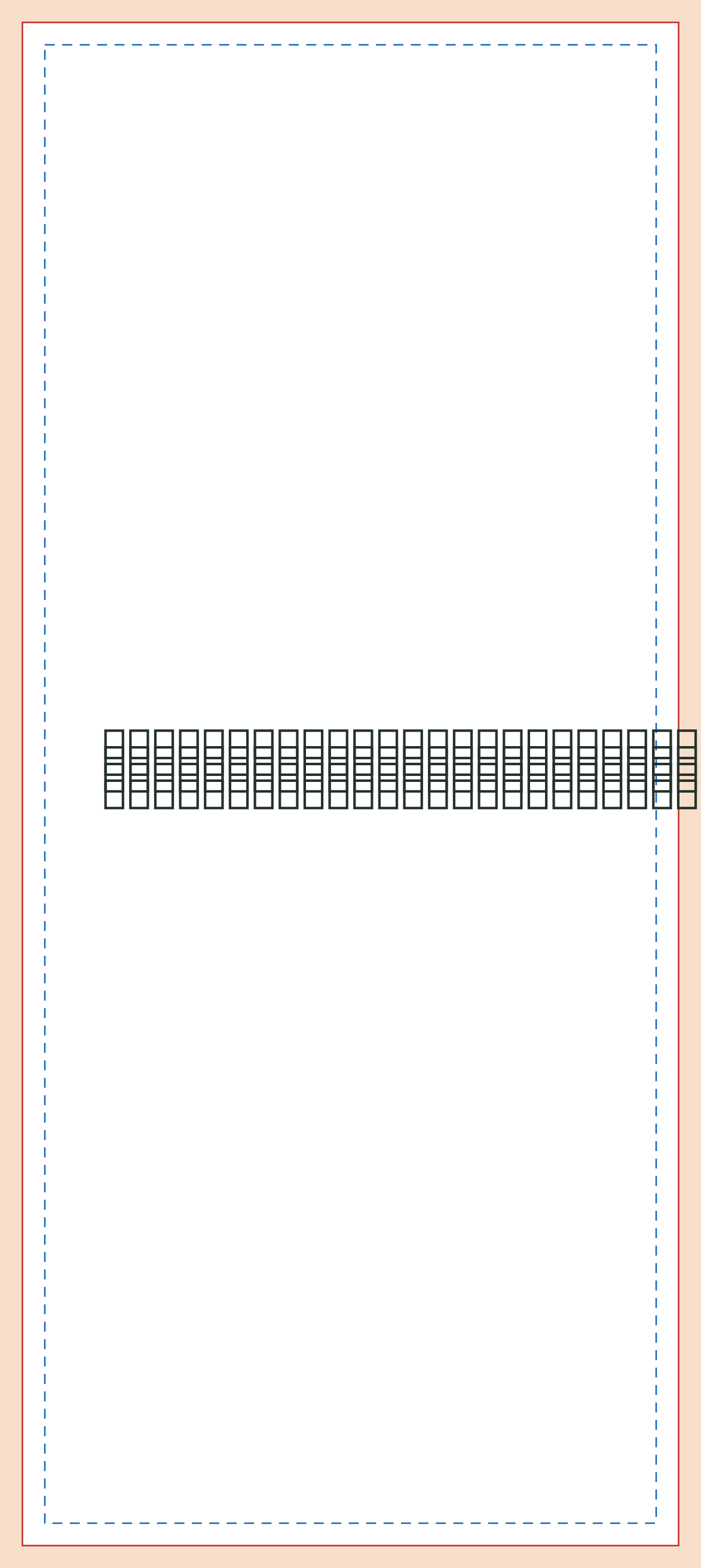
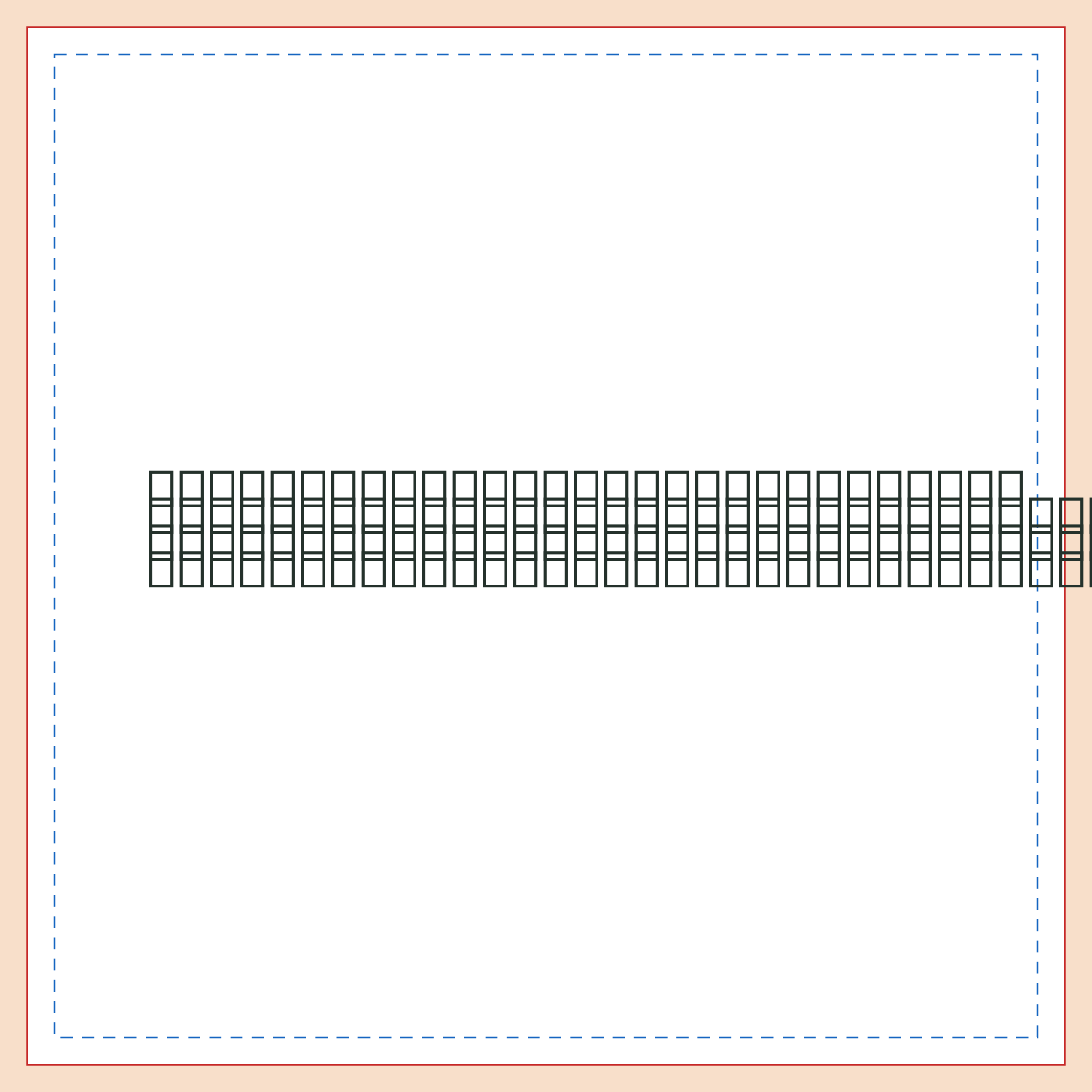
Build your artwork on the guide
PDF guides preserve vector lines and include trim and bleed boxes. PNG guides include 300 dpi resolution metadata and use RGB because PNG does not support CMYK; prepare your final color artwork in a CMYK-capable application. These guides do not include holes, perforations, binding spines, hardware allowances or custom die contours.
- Check the dimensions before designing. The canvas includes 0.125 inches of bleed on every side; the red line marks the finished cut. A round red line is the circle or oval die line.
- Place the template on a locked reference layer. Extend backgrounds through the tinted bleed, and keep text and logos inside the blue dashed safe line: 0.125 inches inside trim, or 0.25 inches for large format.
- For folded work, use the numbered panels to plan reading order on both sides. Make a paper mockup. Nominal fold guides need confirmation of panel allowances before production, especially where panels tuck inside one another.
- Set the artwork to CMYK and use images at 300 dpi at the final print size. Convert fonts to outlines in a copy of your design, then check for missing letters, images and effects.
- Hide or delete the reference layer, including its legend, before exporting. Inspect every page at actual size and send a separate page for each printed side. Keep the editable original.
Export from your design app
- Adobe Illustrator: work in CMYK, place the guide on its own layer and outline text in an export copy. Save a print PDF with the document bleed. Add bleed only once; a canvas already sized to the outer edge of this template includes it.
- Adobe InDesign: set the page to the trim dimensions and enter 0.125 inches for document bleed. Use the template as a reference, outline text in a copy if needed, then export Adobe PDF (Print) using the document bleed settings.
- Adobe Photoshop or Affinity Photo: create a CMYK document at 300 dpi using the template canvas dimensions, including bleed. Preserve an editable file, then export a print PDF or TIFF with fonts converted to shapes or rasterized in the export copy.
- Affinity Designer or Publisher: choose a CMYK document profile, match the trim and bleed, and convert text to curves in a copy. Export a PDF with bleed included and check the resulting page size.
- Canva: match the custom document dimensions to the required trim size, enable print bleed and export PDF Print with bleed included. Select CMYK if your plan offers it. Check the exported dimensions against this guide; if you cannot control bleed, fonts or color, ask us to review the PDF before ordering.
- Satisfaction GuaranteeLearn more
- Free Sample KitRequest now
- Honest Pricing GuaranteeLearn more